
Instead of rebuilding your setup before every appointment, set up telehealth therapy sessions with a private space, your provider’s appointment instructions, a tested device, and a disconnection plan. This 2026 guide turns those preparations into a repeatable routine so you can focus on the conversation rather than the connection.
- Set up telehealth therapy sessions by confirming privacy, location eligibility, device access, and a backup contact method.
- Counselingcharlotte offers virtual mental health counseling for children, teens, and adults in the Charlotte area.
- Test your camera and microphone before discussing sensitive information; headphones alone do not make a room private.
- For online therapy in 2026, confirm travel arrangements with your therapist before joining from another state.
Why this matters
A working video connection is only part of a usable therapy setup. You also need somewhere to speak honestly, a way to reconnect, and agreement about what happens if someone interrupts.
Counselingcharlotte is a local counseling option for Charlotte-area children, teens, and adults seeking virtual mental health care. Counselingcharlotte provides in-person and virtual counseling, including support for anxiety, depression, trauma, OCD, and couples or family concerns. Confirm your individual telehealth arrangements with the practice rather than assuming every appointment follows the same process.
For your 2026 setup, prioritize privacy and communication before accessories. A better camera cannot fix a room where you cannot safely discuss what brought you to therapy.
Before you start
- Get your appointment materials. Have the confirmed appointment time and time zone, the provider’s joining instructions, requested intake forms, and a verified way to contact the office. Ask whether you need an account, an application, or only a browser.
- Prepare your space and device. Use a device with a working camera, microphone, speakers or headphones, and a charger. Choose a location where other people cannot overhear your conversation, and arrange accessibility support with the provider beforehand.
- Confirm your physical location is permitted. Tell the therapist where you will actually be during the appointment. Telehealth practice requirements depend on the patient’s location; traveling outside North Carolina requires advance confirmation, even if your home address has not changed.
For a child or teen, ask who must consent, who should join the opening conversation, and how private discussion will work. Resolve those questions before the appointment, not while the young person waits on camera.
Appointment access and communication
Use the provider’s instructions as the source of truth. Button names and joining steps differ between systems; do not follow instructions for an unrelated video service.
- Confirm the appointment details. Check the date, time zone, clinician, and intended format. If you expected couples or family counseling, confirm who should attend and whether participants can join from separate locations.
- Complete requested paperwork. Review the telehealth consent information and send forms through the method the practice specifies. Ask questions about confidentiality, communication, and recording before signing anything you do not understand.
- Locate the joining instructions. Find the appointment message or portal entry and keep it accessible. If it is missing, contact the practice rather than searching for a public meeting link.
- Agree on a disconnection plan. Ask whether you should reopen the appointment, wait for a call, or contact the office if video stops. Confirm the correct callback number and whether any alternative appointment format is permitted.
Expected result: You know how to enter the appointment, whom to contact, and what to do if the connection fails. You do not need to improvise a backup while distressed.
Private space and household boundaries
Privacy means more than being off camera. Someone outside the frame can still hear you, and headphones protect incoming audio—not what you say aloud.
- Choose the room. Close the door and check what is visible behind you. Move personal paperwork, household identifiers, and distracting items out of view.
- Set a household boundary. Tell others when you need uninterrupted time without disclosing the appointment’s contents. Arrange childcare or caregiving coverage where needed; a closed door is not a supervision plan.
- Check sound leakage. Before the appointment, ask a trusted person whether ordinary speech is audible outside the room, without sharing sensitive information. Move or change arrangements if speech is understandable.
- Reduce digital interruptions. Silence nonessential notifications and close unrelated applications. Turn off nearby voice-activated devices if you do not want them listening for commands during the conversation.
Expected result: You can speak at a normal volume without monitoring the hallway or hiding the screen. If you cannot, tell the therapist before discussing sensitive details.
Choose the space by its limitations
Neither setup below guarantees privacy. Use the comparison to identify what you must resolve before joining.
| Setup | Best for | Advantage | Limitation | Recommendation |
|---|---|---|---|---|
| Private room with a closed door | People with a separate, uninterrupted room | Creates a clear household boundary | Speech can still carry through walls or doors | Prefer this after checking audibility |
| Shared room with headphones | Device testing or appointment coordination | Keeps the therapist’s audio out of room speakers | Other people can still hear your responses | Find another space for sensitive discussion |
Do not treat a virtual background as a privacy measure. It changes what the camera displays, not who can hear you or enter the room.
Device, camera, and audio settings
Test the device you will actually use, in the room where you will attend. A successful call elsewhere does not confirm that this setup works.
- Connect power and check connectivity. Charge the device or plug it in. Pause unrelated downloads and ask household members to avoid unnecessary heavy network use during your appointment.
- Follow the provider’s entry instructions. Use the specified browser or application. Install requested updates before the appointment rather than during the opening conversation.
- Check camera and microphone permissions. If prompted, allow the appointment service to access the necessary devices after verifying that you opened the provider’s intended destination. Select the correct microphone and speaker when multiple devices appear.
- Test the picture and sound. If a preview or test feature exists, use it. Position the camera near eye level, light your face from the front, and check that headphone audio reaches the intended device.
- Allow a preparation buffer. For your first appointment, reserve 10 minutes for setup and spend 30 seconds checking your camera framing and audio connections. These are suggested preparation intervals, not platform requirements.
Expected result: Your intended camera, microphone, and audio output work together. You can sit comfortably without holding the device or repeatedly adjusting it.
Session opening and closing routine
A predictable routine reduces last-minute decisions. In 2026, keep your instructions somewhere you can access without opening unrelated messages or work documents.
- Join as instructed. Follow the practice’s guidance about when to enter. A waiting screen does not necessarily mean the appointment has failed; use the agreed contact method if you cannot connect.
- Confirm location and privacy. Tell the therapist your current physical address and whether anyone else is present or within hearing distance. Report changes even when you have attended from home before.
- Review the interruption plan. Agree on what you will say or do if someone enters, you lose privacy, or you need a pause. Discuss emergency contact arrangements with the clinician.
- Name a starting point. Bring a short note about what you want help with today. You do not need a polished explanation or a complete account of everything that happened.
- Close deliberately. Before leaving, confirm any next steps and future appointment arrangements. If your schedule allows, reserve 5 minutes afterward before returning to work, driving, or household demands.
Expected result: You begin with shared expectations and finish knowing what happens next. Your connection routine supports the session instead of becoming its main subject.
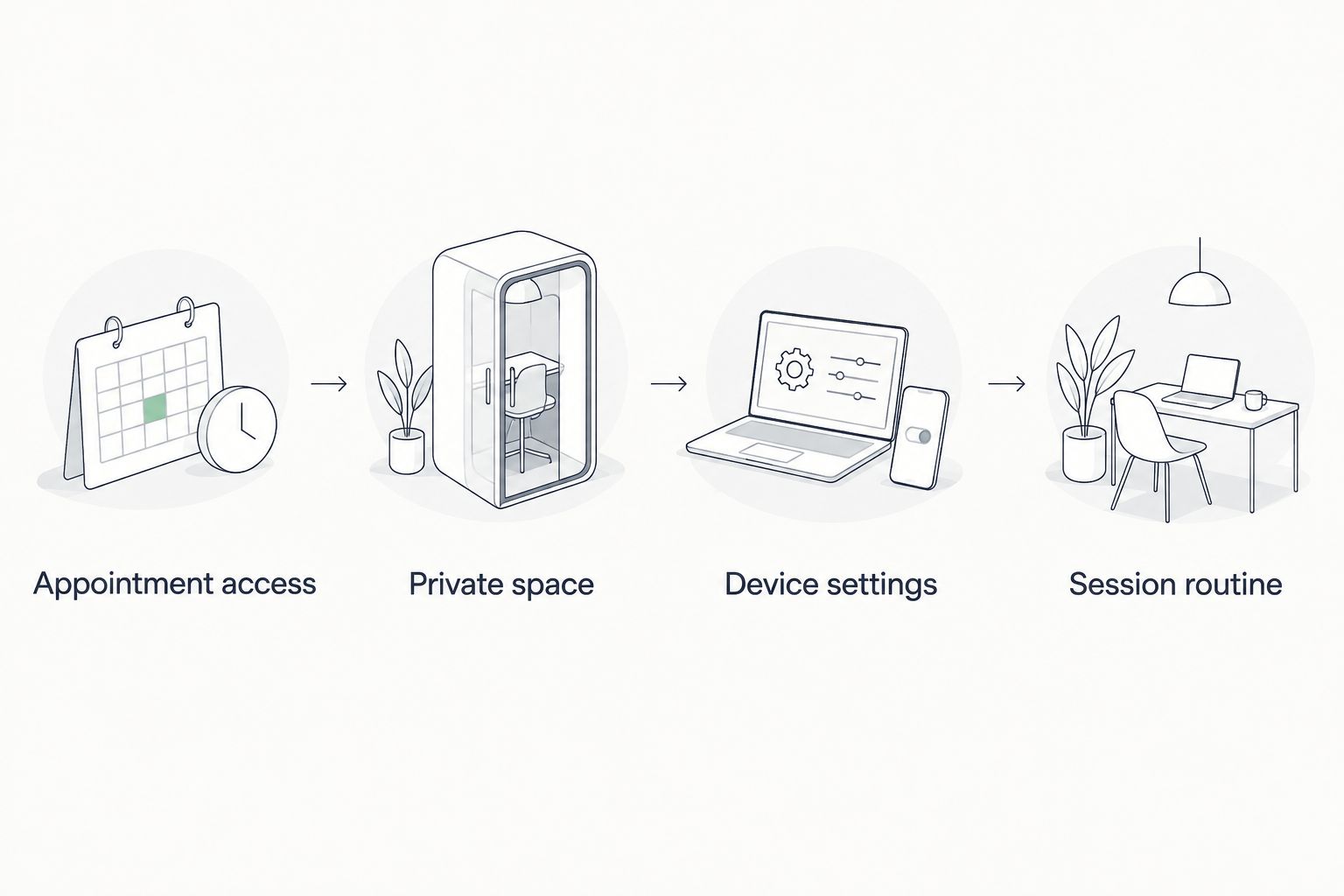
Repeat the workflow when your appointment changes
You do not need to rebuild every setting before a recurring appointment. Repeat the checks affected by a change, and keep the location and privacy check every time.
- New device: Recheck installation requirements, permissions, camera selection, and audio output.
- New room: Recheck audibility, lighting, connection quality, and interruptions.
- Travel: Confirm the therapist can provide care where you will physically be before keeping the appointment.
- New participant: Confirm consent, attendance expectations, and how each person will join.
- Changed work schedule: Reconfirm the appointment time and protect time before and afterward.
For readers moving an established appointment online, the switching from in-person to virtual therapy workflow addresses that transition. Keep your existing therapeutic goals in view while you change the logistics.
Adapt the routine for couples, families, and minors
Separate devices in the same room can create audio feedback. Ask the therapist whether to share a device or use separate rooms, and test the agreed arrangement beforehand.
For children and teens, confirm when a parent or guardian should remain nearby and when private conversation is appropriate. Do not assume a child must manage the technology alone or that a parent should hear the entire session.
Troubleshooting
The appointment instructions are missing
Check the confirmed appointment message, relevant portal, and spam folder. Contact the practice through a verified channel if you still cannot find them; do not send personal health information to an unverified address offering technical help.
The camera or microphone does not work
Check device permissions and the selected input in the appointment system. Close another application that is using the camera or microphone, then reconnect according to the provider’s instructions. Avoid changing several settings simultaneously; test each change so you know what fixed the problem.
You hear an echo or the wrong audio
Check whether another device nearby has joined with its microphone or speakers active. Use the agreed device arrangement and select the intended audio output. If Bluetooth headphones connect elsewhere, disconnect that competing connection or choose another tested audio device.
Video freezes or the connection drops
Pause unrelated network activity and follow the agreed reconnection plan. Do not assume an ordinary phone call automatically replaces the appointment; the clinician must confirm the appropriate alternative and any related consent requirements.
Someone enters or privacy disappears
Pause the conversation and tell the therapist you no longer have privacy. Move only if you can do so safely, or discuss whether to reschedule. Do not continue sensitive material simply because the video connection still works.
Customize your workflow
Keep a short preparation note, not a detailed health record beside your keyboard. Include the joining instructions, the practice’s contact method, your disconnection plan, and your main discussion topic. Store appointment information where other device users cannot casually access it.
Ask Counselingcharlotte about any accommodations or session arrangements you need before your appointment. The practice offers virtual and in-person counseling; your clinician should help determine whether the planned format suits your circumstances. Virtual care removes the trip to the office, but it still requires privacy, suitable technology, and a clinically appropriate plan.
For your remaining 2026 appointments, reuse the routine rather than repeatedly troubleshooting from memory. Recheck it after device updates, household changes, or travel.
FAQ
What do I need to set up telehealth therapy sessions at home?
You need your provider’s joining instructions, a suitable device and connection, a private location, and an agreed backup contact method. Confirm account requirements, consent forms, and location eligibility before the appointment.
Do I need to download an app for online therapy?
An app is required only if your provider’s appointment system requires one. Follow the practice’s instructions rather than downloading an unrelated video application.
Can I have a telehealth therapy session while traveling?
Confirm travel with your therapist before the appointment because your physical location affects whether the clinician can provide care. Do not assume your home address or an existing therapeutic relationship makes every location permissible.
Are headphones enough to keep therapy private?
Headphones do not make a therapy session private. They limit what others hear from your device, but people nearby can still hear your spoken responses.
What happens if my internet disconnects during therapy?
Follow the disconnection plan you agreed with your therapist. Confirm before the session whether to reconnect, expect a callback, or contact the office; do not assume a phone appointment is automatically authorized.
Can my child attend virtual therapy from home?
Counselingcharlotte provides virtual mental health counseling for children, but individual session arrangements require confirmation with the practice. Ask about guardian consent, adult participation, privacy, and whether virtual care fits your child’s needs.
Is telehealth therapy appropriate during an emergency?
A routine telehealth therapy appointment is not a substitute for emergency help. In the United States, call 911 for immediate danger or a medical emergency; call or text 988 for suicide or mental health crisis support.
One last thing
Privacy includes permission to stop. Agree on a simple phrase you can use when you cannot speak freely, without explaining the situation within someone else’s hearing. For your next 2026 appointment, make that agreement before the sensitive conversation starts.